Why Is My Laptop Fan So Loud? Diagnose It Safely
Diagnose loud laptop fans by checking workload, power mode, airflow, firmware, dust, and hardware symptoms before opening the chassis.
A loud fan is not automatically a fault. It may be the cooling system responding correctly to a game, update, video export, charging load, or hot room. The useful question is whether noise matches workload and returns to normal afterward.
Start without opening the laptop
- Put the laptop on a hard, flat surface and clear every intake and exhaust.
- Open Task Manager (Windows) or Activity Monitor (macOS) and sort by CPU/GPU use.
- Wait for updates, indexing, antivirus scans, or cloud sync to finish if they are legitimate.
- Select a balanced/quiet mode in the manufacturer utility or OS power settings.
- Restart and retest the same light workload.
- Install relevant stable firmware and driver updates from official support pages.
Normal behavior: fan speed falls after load stops and the laptop remains stable. If a browser tab or process immediately returns to high load, troubleshoot that application rather than cleaning hardware blindly.
Check airflow and dust safely
Inspect vents with the computer off. Remove external blockage with a soft brush only if the manufacturer permits it. Do not spin a fan at extreme speed with compressed air, insert objects through vents, or spray liquid cleaner.
Opening the chassis requires the exact service manual, warranty check, power disconnection, ESD precautions, and correct tools. Fan and heat-pipe locations differ by model. If authorized, hold the fan stationary while cleaning and avoid disturbing thermal pads. Replacing thermal paste is not a universal first step and can worsen contact.
Interpret the sound
- Steady airflow under load: usually normal cooling.
- Frequent ramping at idle: background work, aggressive firmware curve, blocked airflow, or sensor issue.
- Grinding, scraping, ticking: possible bearing, blade, or cable contact; stop and service.
- Silence plus overheating/shutdown: possible failed fan or connection; stop heavy use.
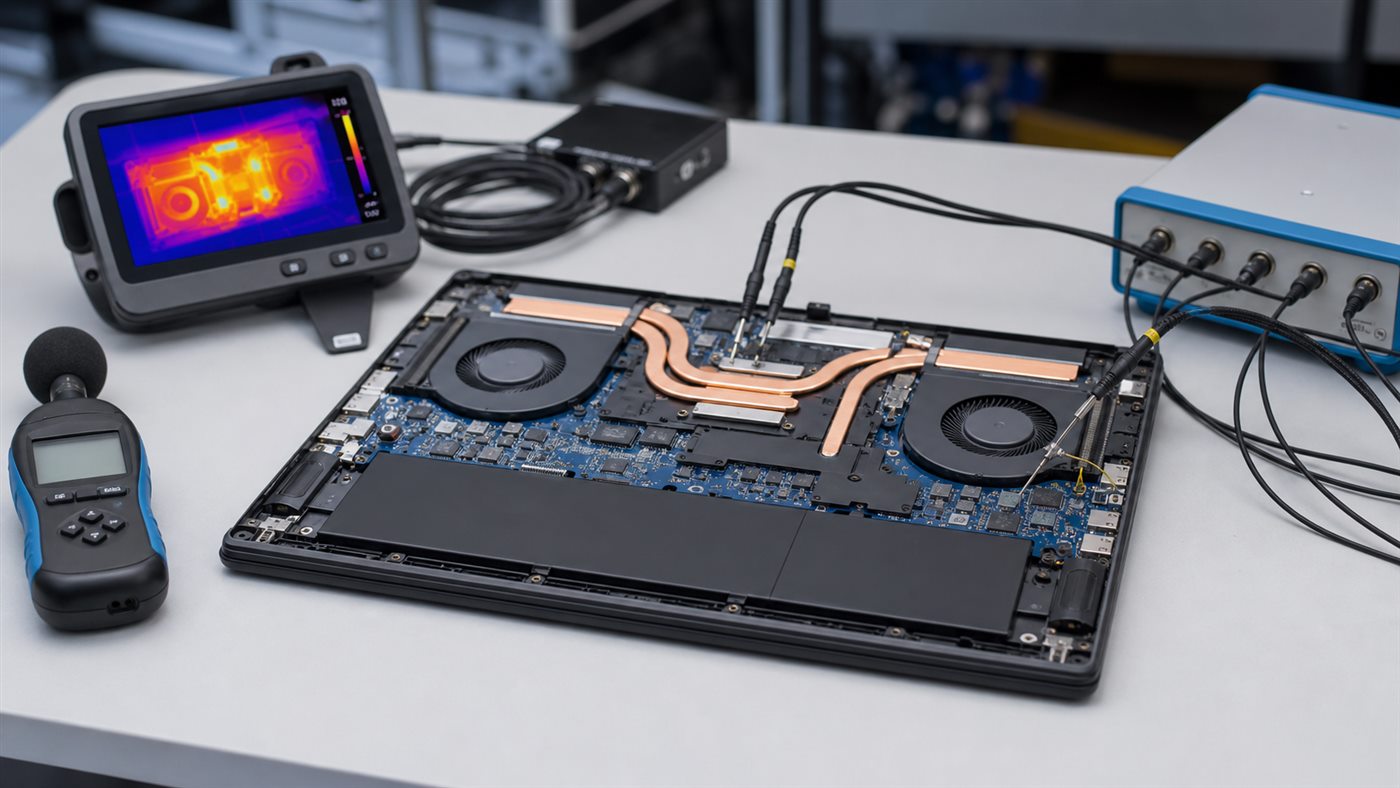
Our thermal testing methodology explains why temperature alone cannot rate a cooling system: power and performance must be recorded together. For lower battery drain and heat, use the reversible steps in improving laptop battery life.
Recovery and professional-service boundary
Undo a recent power-profile change or problematic update using official rollback options. Restore manufacturer defaults if a tuning utility created unstable behavior. Do not disable thermal protection or force a fan off.
Seek professional service for grinding, physical damage, liquid exposure, burnt odor, swelling, repeated thermal shutdowns, or when the manual does not authorize access. Back up data before repair when the laptop remains safe to operate.
Conclusion
Begin with workload and airflow, then use supported quiet modes and updates. Clean internally only with a model-specific procedure. Loud airflow during real load can be normal; mechanical noise or heat without fan operation is not.
Frequently asked questions
Why is the fan loud while charging?
Charging adds heat and may enable a higher performance mode. Test the same task on battery and AC, but stop if the adapter, battery, or chassis becomes abnormal.
Can I use compressed air?
Only as the manufacturer permits, with the machine off and fan prevented from overspeeding. Never push debris deeper through a vent.
Will a cooling pad fix fan noise?
It may improve intake on some designs, but it cannot repair a failing fan, dried interface, blocked internal heatsink, or runaway process.